GPath Laser
Material test grid
Last updated Jul 26, 2026, 11:41 AM
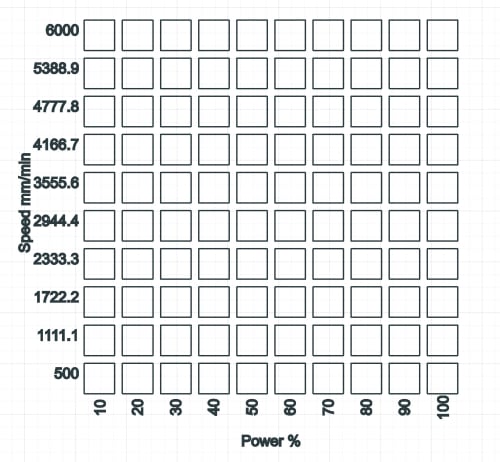
The material test grid helps you find good cut and engrave settings for a material. GPath places a grid of squares on the canvas and creates a separate laser operation for each cell, stepping speed by row and power by column.
Use it inside an open laser project after your machine profile and material size are set.
Open the dialog
From inside a project:
- Laser operations → Material test grid…
The Material test grid window opens at the centre of the screen.
What gets created
When you click Generate, GPath adds:
| Item | Description |
|---|---|
| Square cells | One square per row/column combination, grouped together on the canvas |
| Laser operations | One operation per cell, named like Test Line P50 S3000 (power and speed for that cell) |
| Optional labels | Axis titles and value labels along the left and bottom edges |
| Vectors list entry | A grouped row such as Material test grid (10×10, line) |
The grid is centred on your material. Settings are saved in the project file so you can reopen and update the grid later.
How power and speed are assigned
| Axis | What changes |
|---|---|
| Rows | Speed — minimum speed on the first row, maximum on the last row, evenly stepped between |
| Columns | Power — minimum power on the first column, maximum on the last column, evenly stepped between |
With labels enabled:
- Speed values appear beside each row (left side).
- Power values appear under each column (bottom).
- A single Material test labels operation engraves all label text at mid-range power and speed so the labels are readable without overpowering the test squares.
Dialog settings
Grid
| Field | Description |
|---|---|
| Rows | Number of speed steps (1–25) |
| Columns | Number of power steps (1–25) |
| Cell size | Width and height of each square, in your machine’s length units (mm or in) |
| Gap | Space between squares |
Defaults: 10 rows × 10 columns, 12 mm cells, 3 mm gap (converted automatically if your machine profile uses imperial display).
Power & speed
| Field | Description |
|---|---|
| Min / max power (%) | Power range for the grid (0–100%) |
| Min / max speed | Speed range for the grid, labelled in your machine’s feed display (mm/min, in/min, mm/s, or in/s) |
Defaults: 10–100% power, 500–6000 mm/min speed (or inch equivalents).
Speed labels and the dialog follow the feed display on your linked laser machine profile — the same units shown in the operation panel.
Operation
| Option | Description |
|---|---|
| Line | Outline each square (vector cut/engrave) |
| Fill | Fill each square (raster-style fill operation) |
| Show power and speed labels on the grid | Add engraved axis titles and value labels around the grid |
Choose Line for line-focused materials and Fill when you want to test filled areas.
Generate the grid
- Set rows, columns, cell size, gap, and your power/speed range.
- Choose Line or Fill, and whether to show labels.
- Click Generate.
If the grid is too large for your material, GPath shows an error and disables Generate. Reduce cell size, gap, or row/column count until it fits.
Update an existing grid
After a grid is created, it appears as one group in the Vectors list (Design sidebar).
| Action | Result |
|---|---|
| Click the group name | Reopens the Material test grid dialog with the saved settings |
| Update grid | Replaces the existing squares, labels, and operations with a new grid from the current settings |
Use Update grid when you want more/fewer steps, a different size range, or to switch between Line and Fill — you do not need to delete and recreate the grid manually.
Use the Transform tool to move or adjust size.
Run the test
The material test grid behaves like any other laser job:
- Check operations in Laser operations → Operations — each cell has its own operation, toggle visibility to include or exclude cells.
- Connect your machine in the Connection tab if you are running over USB.
- Click Run (or export G-code if you use an offline profile).
Frame respects operation visibility toggles, same as a normal job.
Delete a grid
Deleting any part of a material test grid removes the entire grid and all of its laser operations.