GPath Laser
Repeat (Grid)
Last updated Oct 26, 2026, 7:48 PM
1. Start
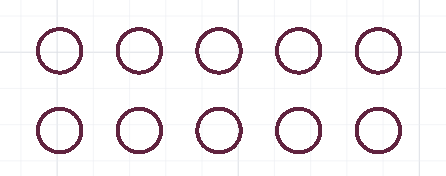
Use this tool to create multiple copies of a vector in the up/down and left/right direction. Select the vectors you want to duplicate, then click Repeat (Grid) in Copy & Repeat.
2. Right sidebar
Selection
Shows the count of selected shapes. Add or remove items by clicking on the canvas.
Grid Configuration
| Field | Description |
|---|---|
| Rows, Columns | The duplication array |
Spacing
| Mode | Description |
|---|---|
| Between Centers | Distance between the center of each selected vector |
| Between Vectors | Space between each item, then enter X Spacing and Y Spacing |
note: Between Centers can overlap vectors if not enough space is added.
Direction
| Field | Description |
|---|---|
| X | Left/Right |
| Y | Up/Down |
3. Apply
Apply Repeat creates the grid of copies. Cancel closes the panel.
Laser tips
Fill a sheet with identical parts (e.g. Square or Circle outlines) using Between Vectors spacing to leave a kerf-width gap between cuts. Combine with your material size to maximise yield.