GPath Laser
Creating a laser project
Last updated Oct 14, 2026, 6:31 PM
This guide walks you through creating your first laser project in GPath Laser. From the welcome screen, through machine setup and project creation.
1. Launch GPath Laser
When you open the app, you first see the welcome screen.
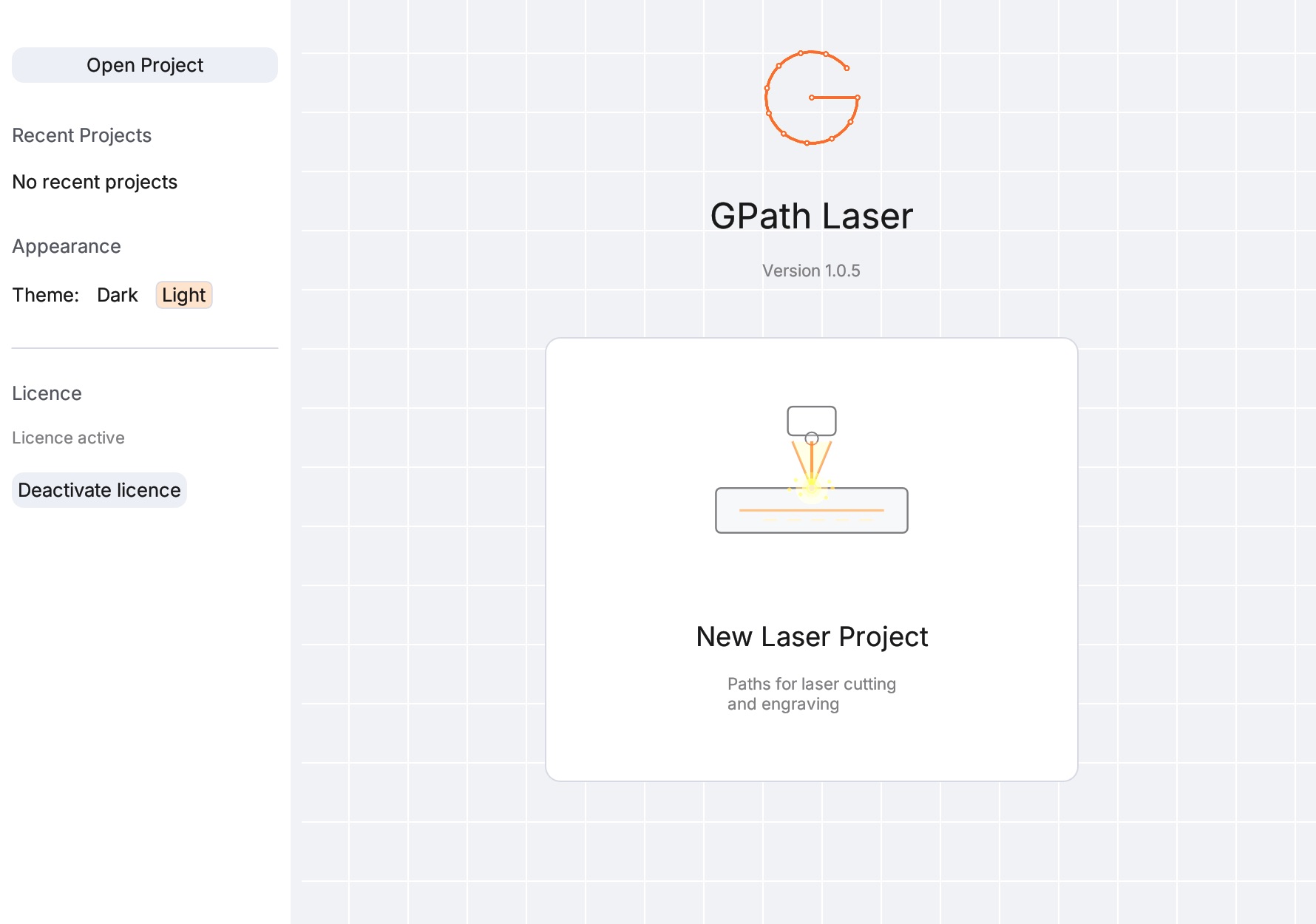
The window is split into two areas:
| Area | What it shows |
|---|---|
| Left sidebar | Project actions, recent files, appearance, and licence |
| Main splash area | App logo, version number, and the New Laser Project card |
2. Welcome screen sidebar
The left sidebar is your hub for opening existing work and adjusting app preferences.
Open Project
Click Open Project to browse for an existing .gpath file. GPath Laser filters the file picker to GPath Project files (.gpath extension).
Keyboard shortcut withing drawing area: ⌘O (macOS) or Ctrl+O (Windows).
Recent Projects
Below Open Project, recently opened files appear as clickable rows. Use Clear Recent to empty the list (this does not delete the files on disk).
Appearance
Switch between Dark and Light themes. This setting applies across the welcome screen and all project screens.
Licence
Project actions (new, open, recent) require an active trial or licence.
- If you are not licensed, the New Laser Project card on the splash is dimmed and cannot be clicked. A note beneath the card explains why (for example, trial not started, trial ended, or subscription lapsed).
- Use the Licence section in the sidebar to enter your licence key or start a trial.
- Once licensed, the card becomes active and the lock note disappears.
3. Start a new laser project
Click the New Laser Project card in the main splash area to be taken to the project drawing area.
Troubleshooting
I can't click New Laser Project Activate a trial or licence in the welcome sidebar. The card stays disabled until your trial or licence is active.
My canvas size is wrong Edit the machine profile's work area in Laser machine setup…, or pick a different machine.
My coordinates don't match the machine Check the Reference point on your laser machine profile. It must match your controller's work-coordinate origin. Changing it repositions existing shapes to preserve their physical location.
I need to go back to the welcome screen Use File → Back to Welcome Screen or File → New Project. You will be prompted to save unsaved changes first.