GPath CNC
Node Edit
Last updated Oct 26, 2026, 7:48 PM
1. Open the tool
Click Node Edit under Tools in the left toolbar. The tool toggles on and off. When active, the icon highlights.
Click to select a vector shape on the canvas. If the shape supports node editing, corner and midpoint handles appear on its path. The right sidebar shows a short summary of what you can do.
2. Canvas handles
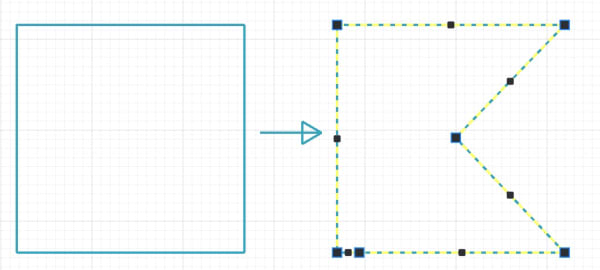
Most editing happens on the canvas:
| Handle | Action |
|---|---|
| Corner squares | Drag to move a vertex |
| Edge midpoints | Drag to insert a new node on that segment and move it |
| Path segment | Click near a segment to insert a node at that point |
Hold Shift while dragging to constrain the move to horizontal or vertical. Snap to grid and snap to points apply while you edit, when those options are enabled.
Each change is recorded in the undo history when you release the mouse after a drag or insert a node.
Click Node Edit again, press esc, or select another drawing tool to exit.
3. Supported shapes
| Shape type | Notes |
|---|---|
| Polyline (open or closed) | Edit every vertex on the path |
| Square, polygon, joined path | Edit corner vertices, mid points, or click to add new points |
| Circle, ellipse, arc | Opens with eight evenly spaced control handles on a smooth curve |
Round shapes stay smoothly curved as you drag their handles. You can add extra nodes on the curve without flattening the shape. If you close and re-open Node Edit on a round shape, the original control handles are restored rather than every sampled point along the curve.
See also
Transform, Repeat (Circular), Repeat (Grid), Boolean, Measure, Mirror