GPath CNC
Start Position Selection
Last updated Oct 26, 2026, 7:48 PM
1. Why start position matters
A profile toolpath is a closed loop. Where the loop begins affects:
- where entry ramping and leads attach,
- how bridges / tabs align with the first cut segment,
- which corner or edge bears the entry witness mark, and
- the milling direction on open polylines when climb or conventional is set.
GPath CNC lets you choose the start on the actual offset toolpath in the simulator so the pick matches what the cutter will follow.
2. Open the simulator and load a toolpath
Switch to the Toolpath Simulator central tab. Use Load in the toolbar to load one profile toolpath, or Load all toolpaths to preview every profile operation together.
Start-position picking applies to profile toolpaths only (Inside, Outside, On-line). Pockets, drills, and laser operations do not offer start anchors.
3. Enable selection
In the simulator view row (far right), turn on Select start positions.
| What happens | Detail |
|---|---|
| Top view | The simulator switches to Top view and resets the camera so anchors line up with the 2D cut path |
| Valid anchors | Small dots appear on every pickable corner and edge midpoint along the offset profile |
| Click | Sets the start for that shape and refreshes the live toolpath preview |
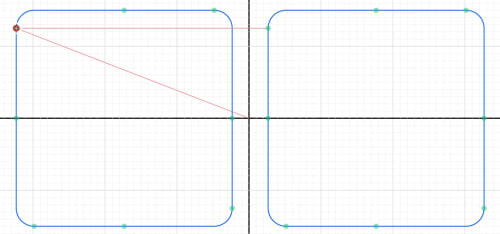
The above image shows the clickable start points on the toolpath. Moving from the reference point (center), to the selected top-left of each square. Turn off the toggle when you are finished picking.
Optimize start positions
With Select start positions on, turn on Optimize start positions. Each shape's start is placed so rapids between consecutive shapes (and from home to the first) are as short as possible. It uses the same corners and edge midpoints you can click.
Clicking an anchor yourself turns optimize off so that pick is kept. Needs two or more shapes.
4. What you can click
Anchors sit on the compensated toolpath — the path the tool centre follows after inside/outside/on-line offset and fillets — not on the original drawn outline.
| Anchor | Shapes |
|---|---|
| Corner | Square, polygon, closed polyline, circle, ellipse |
| Edge midpoint | Square, polygon, closed polyline |
On circles and ellipses, anchors are distributed around the offset perimeter.
5. Multi-shape toolpaths
When one profile toolpath cuts several shapes, each shape keeps its own start anchor. Picking on shape A does not move the start on shape B.
With Load all toolpaths, every loaded profile operation shows its anchors. Each anchor belongs to the toolpath and shape it came from.
6. Simulator only — not the 2D canvas
Profile start picking lives in the Toolpath Simulator, not on the 2D drawing canvas. That keeps it separate from:
- shape selection and node editing,
- manual tab placement on the canvas, and
- other canvas overlays.
Use the simulator when you want to see the start on the same path you are simulating.
7. Live preview
A click updates the toolpath preview immediately — you do not need to press Save in the panel to see the new start in the simulator. Saving persists the choice to the project.
8. Tips
- Pick a straight edge or a corner with clearance when using leads — see Leads.
- Avoid placing the start where a tab must bridge the entry. The tab location may be automatically offset to avoid start position conflict.
- If no dots appear, confirm a profile toolpath is loaded (or the profile panel is open), you are in Top view, and the shape type supports start picking.