GPath CNC
Offset
Last updated Oct 14, 2026, 6:31 PM
1. Open the tool
The offset tool is used to create a copy of a selected vector, offset either inward or outward. creating an inflated or deflated copy of the original.
Click Offset under Tools with one or more shapes selected.
2. Right sidebar — Offset
Selection
Shows how many items are selected. Click shapes on the canvas to add or remove them while the panel is open.
Amount
Distance to offset in project units (positive value). Preview is updated on the canvas when a value is entered.
Direction
| Option | Result |
|---|---|
| Outward | Expands the shape |
| Inward | Shrinks the shape |
| Both | Creates two offset contours — one inside, one outside |
Corners
| Option | Description |
|---|---|
| Rounded | Smooth offset corners |
| Sharp | Mitre-style corners |
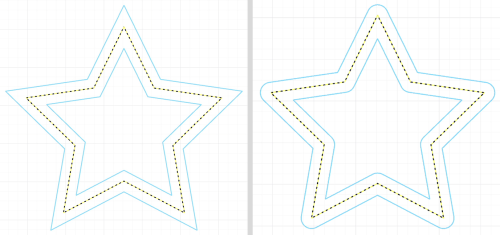
3. Apply or cancel
Apply creates a new offset shape on the active layer (named "Offset N"). Original shapes are unchanged. Cancel closes the panel.